AI music and sound effects into Godot, Unity or Unreal
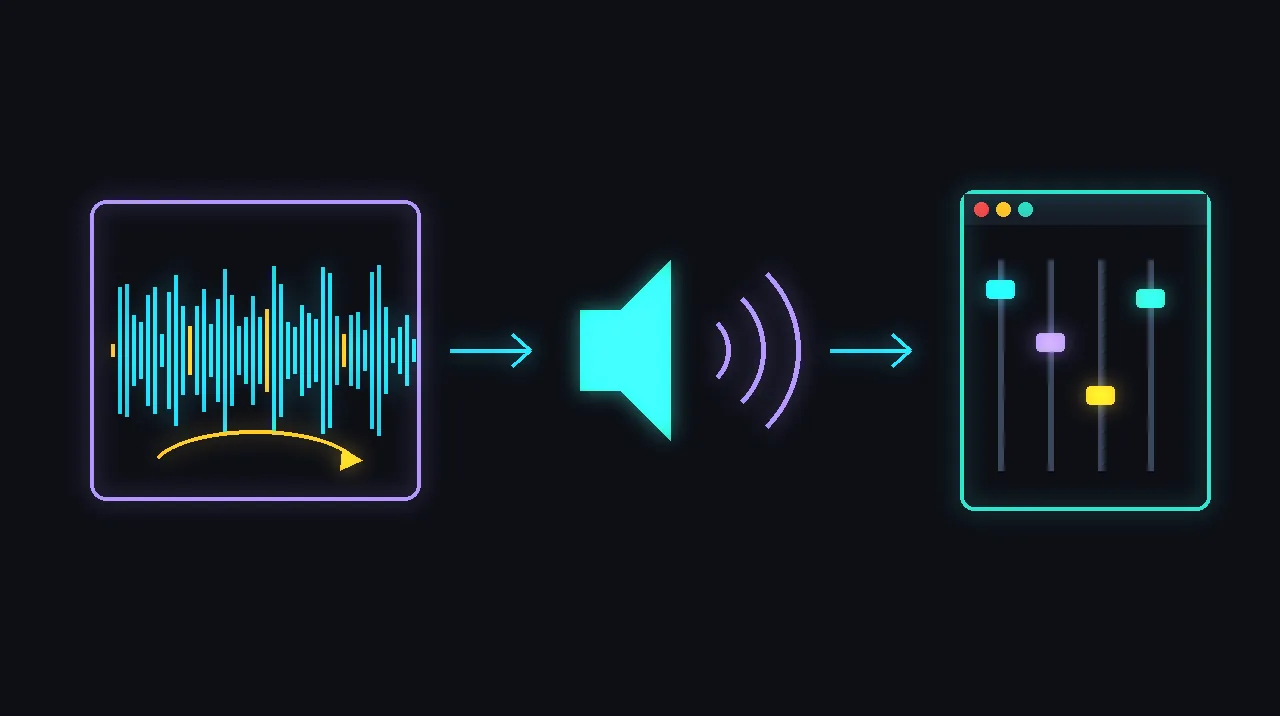
A music track from Suno and sound effects from ElevenLabs, made on a plan that lets you ship them, imported into Godot, Unity or Unreal with the right format, seamless loops for music and ambience, and random variations for repeated sounds like footsteps.

 Music track
- Sound effects
- 3Pick the format
- 4Set up loops
- 5Play in engine
Cost and licences of the AI tools in this guide
- SunoCommercial on paid plans onlyFree $0; no commercial rights pricing
- ElevenLabsCommercial on paid plans only10,000 credits; non-commercial only pricing
Everyone: steps 1–3
Check what your plan lets you ship
- Suno: songs made while you're subscribed to Pro or Premier come with commercial use rights. Songs made on the free plan are non-commercial only.
- ElevenLabs: under its terms, free users may only use the service for non-commercial purposes. Paid subscribers may use it commercially.
- If you sell on Steam, keep a note of which tracks and effects you generated. Valve's Content Survey asks about AI-made content that ships in your game, and it names sound as an example.
You should see: You know which plan you need before you generate the audio you plan to ship.
Watch out: Suno's help centre says subscribing after you made a song doesn't give you a retroactive licence for it, so make the final versions while you're subscribed.
From the official docs: Suno help: distributing your songs ↗
Make and download the music in Suno
- Generate the track, then open the triple-dot menu on it in your Library or Workspace and hover over Download.
- Pick WAV if you're on Pro or Premier. WAV downloads only work on suno.com, and mobile downloads default to MP3. Every plan can download MP3.
- For separate parts (vocals, drums, bass and so on), use Get Stems from the same menu. It's on Pro and Premier, and a song's stems count as part of that song's single download.
You should see: A WAV or MP3 of the track on your computer, plus stem files if you extracted them.
Watch out: Downloads are capped: Pro gets 20 a month and Premier 60, resetting on your billing date. Settle on the final version before you download.
From the official docs: Suno help: what types of files can I download? ↗
Make sound effects with ElevenLabs
- Describe the sound in text, for example a heavy wooden door creaking open.
- Set a duration between 0.5 and 30 seconds, or leave it empty and the model picks one from your prompt.
- Turn on loop for ambience or engine hums that should repeat smoothly.
- Prompt influence defaults to 0.3. Raise it to follow your prompt more closely, at the cost of less variety.
- For footsteps, hits and other repeated sounds, generate several takes of the same prompt so the engine can vary them.
You should see: Short audio files, MP3 by default (mp3_44100_128 through the API).
Watch out: Through the API, 44.1 kHz WAV and PCM output needs the Pro tier or above. Anything longer than 30 seconds has to be a loop or several clips.
From the official docs: ElevenLabs API: create sound effect ↗
Then pick your path
Godot
Pick the right format for each sound
- Use WAV for short, repetitive sound effects. They're cheap to play, so hundreds at once are fine.
- Use Ogg Vorbis for music, speech and long sound effects. The files are much smaller, but they cost more CPU to play.
- Use MP3 for mobile and web projects that play many compressed sounds at once, such as long ambient beds. It uses less CPU than Ogg Vorbis.
- Drop the files into your project folder and Godot imports them.
You should see: Each file shows up in the FileSystem dock, with import options in the Import dock when you select it.
Watch out: WAV files take a lot of disk space. Godot compresses them after import (Quite OK Audio by default, under Compress > Mode).
From the official docs: Godot docs: importing audio samples ↗
Set up loops in the Import dock
- For an Ogg Vorbis or MP3 music track, tick Loop. Set Loop Offset (in seconds) if only part of the track should repeat, or double-click the file for the Advanced dialog, which previews the loop point live.
- For a WAV, set Edit > Loop Mode to Forward, or leave it on Detect from WAV if the file carries loop metadata. Loop Begin and Loop End are in samples, and -1 means the end of the file.
- For one-shot WAVs, turn on Edit > Trim to cut silence at the start and end (below -50 dB), which otherwise adds a delay before the sound plays.
- Click Reimport after changing options.
You should see: Music repeats without stopping, and short effects fire as soon as they're triggered.
Watch out: Looping audio never emits AudioStreamPlayer's finished signal. Ogg Vorbis and MP3 only support a loop start point, not a loop end.
From the official docs: Godot docs: importing audio samples ↗
Play it with an AudioStreamPlayer node
- Use AudioStreamPlayer for music and UI sounds, and AudioStreamPlayer2D or AudioStreamPlayer3D for sounds that come from a place in your scene.
- Assign the imported file to the node's stream and play it.
You should see: The track or effect plays when you run the scene.
Watch out: If a sound needs to play many times at once, keep it as WAV. Godot's docs flag compressed formats as costly when dozens play at the same time on mobile or web.
From the official docs: Godot docs: importing audio samples ↗
Unity
Choose load type and compression per clip
- Import the files (Unity reads .wav, .mp3, .ogg and .aif), select a clip and look at the platform settings in the Inspector.
- Short effects: Load Type Decompress On Load, Compression Format PCM.
- Noisy sounds that play a lot, such as footsteps, impacts and weapons: ADPCM, which is 3.5 times smaller than PCM and light on the CPU.
- Music and longer effects: Vorbis/MP3, with Load Type Streaming for long tracks. Lower the Quality slider until you hear a drop, then raise it slightly.
- Click Apply.
You should see: The Inspector shows the clip's size after import, and long music no longer sits fully in memory.
Watch out: Decompress On Load on a Vorbis clip uses about ten times more memory than keeping it compressed, so don't use it for long tracks. Each streaming clip also carries about 200 KB of overhead.
From the official docs: Unity Manual: Audio Clip Import Settings ↗
Play it with an Audio Source
- Add an Audio Source component to a GameObject and assign the clip to its Audio Generator field.
- Tick Loop for music and ambience.
- Tick Play On Awake to start with the scene, or leave it off and call Play() from a script.
- Set Priority to 0 for music so it never gets swapped out, and route Output to an Audio Mixer group if you use one.
You should see: The clip plays when the scene starts or when your script calls it.
Watch out: The field names here come from the Unity 6.6 manual. Older Unity versions may label them differently.
From the official docs: Unity Manual: Audio Source component reference ↗
Vary repeated effects with an Audio Random Container
- Create an Audio Random Container and add your ElevenLabs takes of the same sound to its Audio Clips list.
- Set its Playback Mode to Random.
- Assign the container to an Audio Source's Audio Generator field instead of a single clip, and call Play() as usual.
You should see: Each Play() picks a different take, so footsteps and hits don't repeat the same clip every time.
Watch out: With the container set to Automatic rather than Manual, AudioSource.Play behaves differently, so read the fundamentals page before scripting it.
From the official docs: Unity Manual: Audio Random Container fundamentals ↗
Unreal Engine
Import the files as Sound Waves
- In the Content Browser, click Import and pick your files, or drag them in from your file manager. Unreal accepts .wav, .ogg, .flac, .aif, .opus and .mp3 at 16 or 24 bit.
- Hover over the new Sound Wave and click its play button to preview it.
- Compression uses the project's default codec, Bink Audio (up to 10:1), unless you set ADPCM or PCM for a platform or a single Sound Wave.
You should see: One Sound Wave asset per file in the Content Browser.
Watch out: Unreal converts every import to a 16-bit WAV, and 24-bit files aren't dithered, so import 16-bit where you can. Exporting a Sound Wave gives you the converted file, so keep your originals.
From the official docs: Unreal Engine docs: importing audio files ↗
Loop music in a Sound Cue
- Create a Sound Cue and add a Wave Player node that points at your music Sound Wave.
- Enable Looping on the Wave Player node.
- Connect it to the Output node. Epic recommends building the graph left to right, from wave players through control nodes to the Output.
You should see: The cue plays the track on repeat with no gap.
Watch out: Don't use the separate Looping node for this. Epic says sounds looped that way won't play seamlessly. It's meant for things like adding a delay.
From the official docs: Unreal Engine docs: Sound Cue reference ↗
Randomise repeated effects with a Random node
- In a Sound Cue, add one Wave Player per take of the same effect.
- Connect them all to a Random node (click Add input for more pins), then the Random node to the Output.
- Adjust each input's weight to make some takes more likely than others.
You should see: Each time the cue plays, it picks one take at random.
Watch out: At runtime only the Sound Waves on the chosen branch load into memory, so many takes don't all sit in RAM.
From the official docs: Unreal Engine docs: Sound Cue reference ↗
Questions
Can I use Suno music in a commercial game?
Only songs made while subscribed to Pro or Premier come with commercial use rights, according to Suno's help centre. Free-plan songs are non-commercial, and subscribing later doesn't license songs you already made. source
Can ElevenLabs sound effects loop seamlessly?
Yes. The Text to Sound Effects API has a loop option that creates a sound effect meant to loop smoothly, and one generation can run up to 30 seconds. source
Should I use WAV or Ogg Vorbis for game audio in Godot?
Godot's docs suggest WAV for short, repetitive sound effects and Ogg Vorbis for music, speech and long effects. MP3 suits mobile and web projects that play many compressed sounds at once. source
Do I have to disclose AI-generated music and sound on Steam?
Valve's Content Survey covers AI-made content that ships with your game and is consumed by players, and it lists sound as an example. AI tools used only for efficiency during development are not the focus. source
Written from the official documentation linked on each step and checked . Menus and settings change between versions, so follow the linked docs if something looks different. No vendor reviews or pays for these guides.