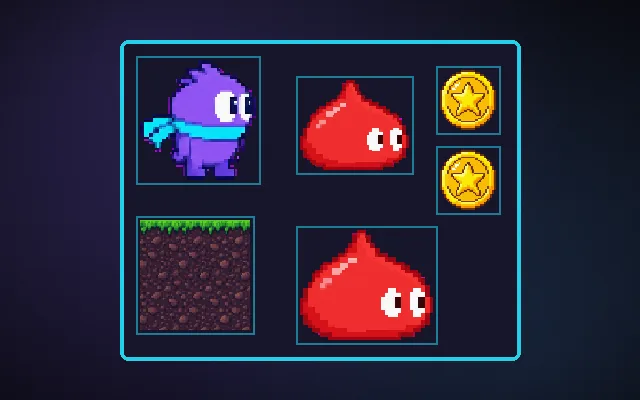
Pixel-perfect rendering
Crisp pixel art instead of blurry or wobbly pixels.
Pixel art gets ruined in two ways. Smoothing filters blur it, and scaling by uneven amounts like 2.5x makes some pixels wider than others. Moving sprites by fractions of a pixel adds shimmer. Nearest-neighbour filtering, whole-number scaling and snapping positions to the pixel grid keep it crisp.
Try this: Walk slowly left and right. At a 3.37× scale with sub-pixel positions the hero blurs and shimmers. Turn on Pixel-perfect: a whole-number scale and snapped position keep every pixel crisp.
Walk slowly and watch the edges: pixels blur and change width from frame to frame.
Prompt bit
Works for 2D or 3D in any engine (Unity, Unreal, Godot, web). Paste the short one for a quick fix, or the detailed one when you want it done properly.
Render pixel art crisply: nearest-neighbour filtering on every sprite, a low-resolution render target upscaled by the largest whole number (3x, never 3.25x) with letterboxing, and sprite positions snapped to whole pixels each frame, while the camera itself can still move smoothly.
Make the pixel art render crisply (2D, any engine). Import every sprite and tileset with point/nearest filtering, no mipmaps and no compression. Choose a base resolution (for example 320x180 or 480x270) and render the game to it, then upscale the whole frame by the largest integer that fits the window and letterbox the rest (Unity Pixel Perfect Camera, Godot viewport stretch mode with integer scaling, Phaser pixelArt: true and roundPixels, CSS image-rendering: pixelated with canvas imageSmoothingEnabled = false). Snap sprite and camera positions to whole pixels of the base resolution when drawing, while keeping the real positions as floats for movement. For smooth camera pans (around 0.2 s and longer) at low resolutions, render one pixel bigger and offset the final image by the sub-pixel remainder so sprites do not shimmer. Keep UI and text either on the same pixel grid or on a separate high-resolution layer. Avoid rotating or scaling sprites by non-integer amounts at runtime. Add padding between atlas frames to stop bleeding.
Where it's used
- Pixel-art platformers and RPGs: crisp tiles and sprites
- Retro-styled 3D: low-res render targets with chunky pixels
- Web games: canvas scaling on any window size
- UI icons: pixel fonts and icons at 1x, 2x, 3x
- Mobile: odd screen sizes with letterboxing
Common mistakes
Leaving bilinear filtering on (blurry), scaling by 1.5x or 2.5x (uneven pixel sizes), moving sprites by fractions of a pixel (shimmer), and mixing high-res UI and pixel art on the same grid without a plan.
Writing this with an AI assistant? See our best AI coding assistants for game developers.
Missing a concept? Request one.