How to make a game trailer with AI tools (and keep it Steam-ready)
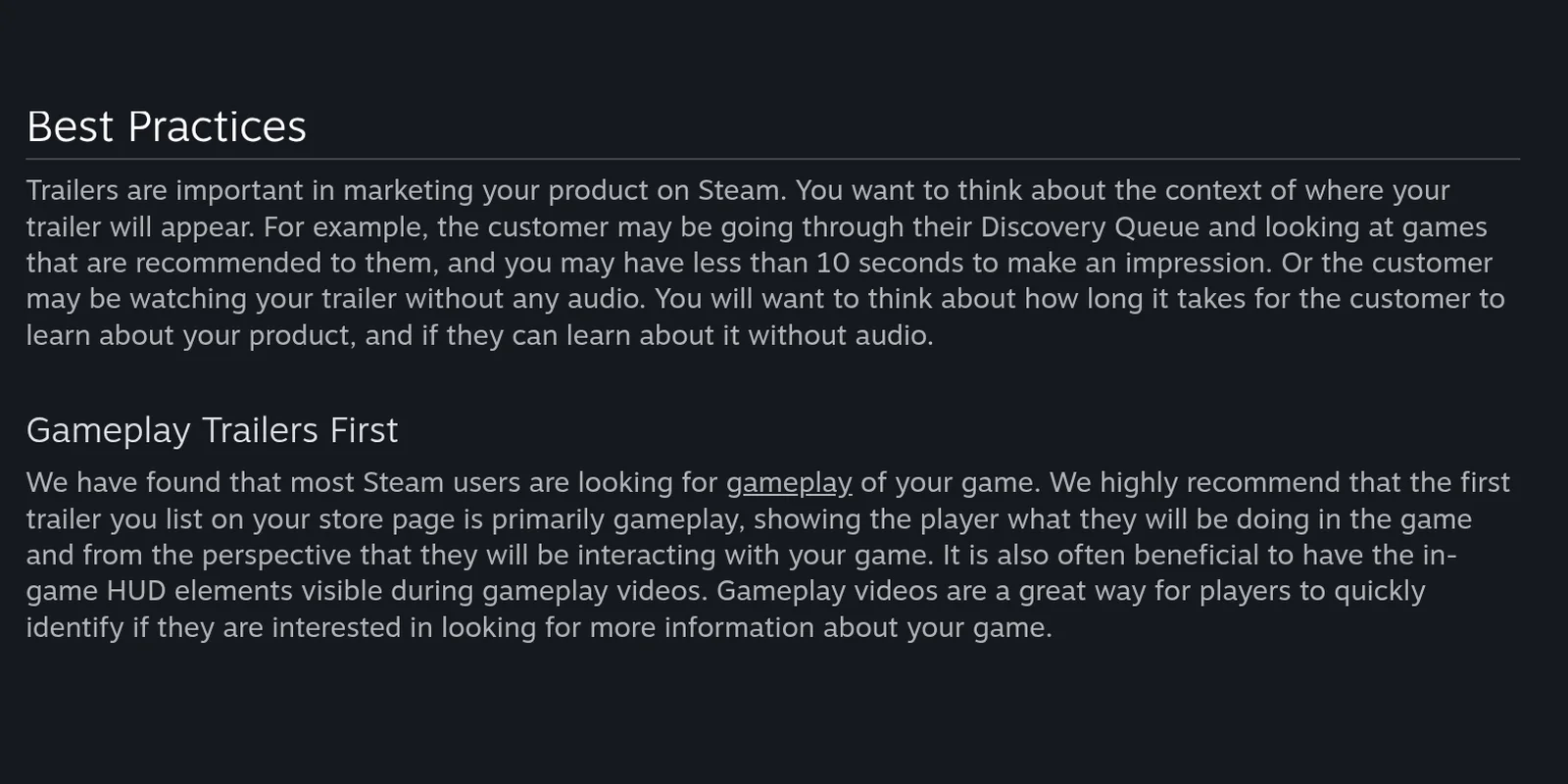
Lead with real gameplay, then use AI for extras: title shots, flythroughs, music and sound. Valve recommends your first Steam trailer be "primarily gameplay", and Steam builds its 6-second seasonal-sale microtrailer from your first visible trailer, so you can't customise it. Check each AI tool's terms first: some bar commercial use, and we read a trailer for a paid game as commercial use.
About 8 min read
Short answer: A Steam-ready trailer: real gameplay first, AI extras only where each tool's terms allow your use, and a first video that survives being cut into a 6-second microtrailer.
- Capture gameplay
- Add AI extras
- Edit and export
- Upload to Steam
- Check the microtrailer
- Match your disclosure
This summarises each vendor's published terms on the date shown. It isn't legal advice. Anything a vendor's page doesn't say is marked "Not stated by vendor".
Which AI video and sound tools allow commercial use? (read 16 Nov 2026)
| Tool | Commercial use? | The catch (vendor's own words where quoted) |
|---|---|---|
| Seedance (Dreamina app) | Restricted | Dreamina's Terms of Service (last updated 22 Jan 2026), s.7: you agree not to "access or use the Services or any content therein for any commercial or unauthorized purposes". We found no plan page that grants commercial rights. Terms for Seedance through other providers weren't checked. source |
| Kling AI | Paid members | Terms of Paid Service (effective 10 Oct 2026): members' "use of the Output for commercial purposes is not restricted", except to build competing products. What free accounts may do sits in Kling's Terms of Service, which we couldn't load on 16 Nov 2026, so we don't state it. source |
| Google Flow (Veo 3.1) | Google's terms apply | Flow's help page answers the commercial question by pointing to the Google Terms of Service (effective 30 Jul 2026): "Google won't claim ownership over that content." It doesn't say "commercial use is allowed" in so many words, so read the terms in full. source |
| Runway | Yes, under its terms | Terms of Use 4.4: "Subject to your compliance with the Agreement, the Company does not restrict your commercial use of your Outputs." The same clause lets Runway use Inputs and Outputs to train its models. source |
| Luma AI | Plus and above | The pricing page lists "Commercial use" on the Plus plan, and Pro and Ultra are "Everything in" the plan below. No free plan is listed. source |
| Marble (World Labs) | Paid accounts | Terms of Service (last updated 21 Jan 2026), s.3.3: Free accounts get a licence to use output "solely for personal, Non-Commercial Use". Paid Account Users own their output and may use it "for any purpose, including Commercial Purposes". Which paid tier counts as "paid" for a given feature: confirm with World Labs. source |
| Layer | Listed for all users | Pricing page: "Commercial license for all users". What the free tier includes: Not stated by vendor on that page. source |
| Mirelo (sound for video) | Paid plans | Terms (last updated 19 Oct 2026), s.2.1: Free Plan users may use Output "exclusively for non-commercial purposes". s.7.5: free output may carry a watermark and must credit Mirelo as the sound provider. source |
Source: Steamworks Content Survey · Checked
Steps 1–3the same for everyone
After that, pick A. Gameplay trailer with AI extras or B. Cinematic or teaser shots.
-
Read what Steam wants from a trailer
Valve publishes trailer advice in Steamworks, its site for developers. Read it before you generate anything: it decides what the AI is for.
- Open Steamworks and find Store Presence > Trailers.
- Note that you must upload a trailer as part of the release process.
- Read the Best Practices section: you may have "less than 10 seconds" to make an impression, and viewers may watch "without any audio".
- Read Gameplay Trailers First: Valve "highly recommend[s]" that the first trailer on your store page is "primarily gameplay", and says having the in-game HUD visible is "often beneficial".
- Pick a category for each trailer: General / Cinematic, Teaser, Gameplay, or Interview / Dev Diary.
You should see: You know that your first trailer should be mostly gameplay, and which category each of your videos falls under.
Watch out: Valve gives no recommended length. Common advice says 30 to 60 seconds, but that is not a Valve rule.
From the official docs: Steamworks: Trailers ↗
-
Match the file to Steam's upload spec
Steam re-encodes (converts) every trailer you upload, so start from a file it can read cleanly. Export once at the right settings and you won't redo it.
- Export at up to 1920 x 1080, at 30/29.97 or 60/59.94 fps, with a high bit rate of 5,000+ Kbps.
- Use an .mp4, .mov or .wmv file. H.264 video and AAC audio are preferred.
- Prefer 16:9. Valve says 4:3 is accepted, but the Steam client is optimised for widescreen.
- Use 44 kHz or 48 kHz audio. Valve lists an unsupported audio sample rate as a common cause of failed conversions.
- Upload under Store Page Admin > Trailers, and name each trailer. If you set your own thumbnail, it must be a frame from the video, 1920 x 1080 .jpg or .png.
You should see: A Steam-ready file that uploads and finishes converting in the Trailers tab.
Watch out: You can't release your game while a trailer is still converting. Valve says conversion can take a few hours when the queue is long, so upload early.
From the official docs: Steamworks: Trailers ↗
-
Plan for the microtrailer
A microtrailer is a 6-second loop that Steam shows in busy places, such as seasonal sales. You don't make it. Steam cuts it from your first trailer, so your first trailer has to survive being chopped up.
- Know the rule: Steam makes it from "the first video visible in its Store Page" by "taking six 1-second clips from various points in the video, and stitching them together".
- Know the limit: "It is not possible to customize microtrailers."
- Check your edit in 1-second slices: any slice should show the game, not a black frame or a long logo.
- Keep your cinematic or teaser video below your gameplay trailer in the list, so it doesn't become the first visible video.
You should see: Every second of your first trailer shows something that sells the game, with no empty or logo-only stretches.
Watch out: Valve says your first two valid trailers show before your screenshots, so AI shots that don't show the real game are a risk in those slots. The 1-second slice check is our advice, not Valve's.
From the official docs: Steamworks: Trailers ↗
Then pick your path
A. Gameplay trailer with AI extras
-
Capture and cut the gameplay
Record real play first. This is the part Valve asks for, and AI can't replace it.
- Record gameplay from your own build in your engine or a screen recorder, with the HUD visible.
- Cut a first draft that shows what the player does, from the player's point of view.
- Check the draft muted: can someone learn the game without sound?
You should see: A muted rough cut where a viewer can tell what the game is and what you do in it.
Watch out: Valve's advice is about the first trailer you list. Everything you add on top should support the gameplay, not hide it.
From the official docs: Steamworks: Trailers ↗
-
Add AI extras that are honest
Use AI where it adds polish without pretending to be the game: a title card, a short flythrough, music, or sound effects.
- For a flythrough of an environment, consider Marble (World Labs). Check the table above: Free accounts are non-commercial.
- For a short title or transition shot, consider Google Flow, Runway or Luma AI. Check the table above for your plan.
- For sound, see the music and sound tools page and our AI music and SFX guide, which cover licences. Mirelo adds sound to video, but free-plan output is non-commercial and needs a credit.
- Label each AI shot in your own notes (tool, plan, date), so you can answer the Content Survey later.
You should see: A list of your AI shots, each with its tool and the plan you generated it on.
Watch out: Free-plan output can't go in a trailer for a paid game on the tools marked above. Regenerate on a paid plan before you export.
From the official docs: World Labs Terms of Service ↗
-
Export and check the first seconds
Now put the footage together in your video editor and export it to the spec from the shared steps.
- Export to Steam's spec (shared step 2).
- Watch the first 10 seconds without sound, then watch six random 1-second slices.
- Upload as the first trailer, with the Gameplay category.
You should see: The Trailers tab shows your upload as converted, with Gameplay as its category.
Watch out: Whatever you add, the trailer has to show the game players will actually get.
From the official docs: Steamworks: Trailers ↗
B. Cinematic or teaser shots
-
Start from your own key art
Key art is the painting or render that sets the look of your game. Starting from your own gives the AI something real to match.
- Pick 2 or 3 pieces of your own key art or character sheets.
- Write one short prompt per shot: what moves, and how the camera moves.
- Generate with a tool whose terms fit your plan (see the table above). Skip Seedance if you'd use its Dreamina app output commercially.
You should see: A few short clips, each from your own art, with the tool and plan noted.
Watch out: In our own same-prompt tests on 7 Nov 2026 (via fal.ai, first result kept, no retries), Luma Ray 3.2, Seedance 2.5 and Kling 4.0 each returned clips of about 5 seconds, so plan your shots as short beats. Kling's and Seedance's clips included audio and Luma's didn't. We haven't tested these tools on a full trailer.
From the official docs: Our same-prompt video tests ↗
-
Pick the right Steam category
Steam lets you label each video, and the label shows to players. A cinematic is not a gameplay trailer, so label it that way.
- Choose General / Cinematic for a mix of pre-rendered video, logos and title screens, or Teaser for a short announcement video.
- Drag it below your gameplay trailer in the Trailers tab, unless it's the only video you have.
- Give the video a plain name, such as "Announcement teaser".
You should see: The video shows with a Teaser or General / Cinematic label, below your gameplay trailer.
Watch out: If a cinematic or teaser is the first visible video, Steam builds the microtrailer from it.
From the official docs: Steamworks: Trailers ↗
Before you ship: check your plan and your disclosure before upload
- Open each tool's terms from the table above and check the plan you generated on.
- Keep a note of each AI shot's tool, plan and date.
- Read the AI part of Steam's Content Survey: Valve compares your answers "relative to the content in your build and on your store page". Under the Steam Distribution Agreement, Valve says, your game will be "consistent with your marketing materials".
- Whether trailer-only AI footage must be listed in the AI section: Not stated by vendor.
Watch out: AI shots that don't show your real game risk breaking Valve's "consistent with your marketing materials" promise. Keep AI shots to extras around real gameplay.
From the official docs: Steamworks: Content Survey ↗
- Seedance (Dreamina)Restricted (see notes)Free daily credits (amount not stated); downloads carry a Dreamina watermark unless subscribed pricing
- Google Flow (Veo 3.1)Commercial use allowed50 Flow credits per day (a few Veo 3.1 Lite or Omni Flash clips); video may be unavailable to non-subscribers 2-5 PM UTC pricing
- Kling AICommercial on paid plans onlyFree credits for non-members (amount unverified); outputs carry Kling branding and can't be used commercially pricing
- RunwayCommercial use allowed125 one-time credits pricing
- Luma AICommercial use allowedNo free plan listed pricing
- Marble (World Labs)Restricted (see notes)Up to 4 world generations (7,000 credits); exports start on Standard pricing
- LayerCommercial use allowedStart for free (scope unverified) pricing
- MireloCommercial on paid plans onlyFree €0/month: 5,000 credits, watermarked exports, non-commercial pricing
Questions
Can my Steam trailer use AI-generated video?
Valve's Trailers page doesn't ban it. It does recommend that your first trailer be "primarily gameplay", and its Content Survey page says your game must be "consistent with your marketing materials". Whether AI-only trailer footage must be listed in the AI section: Not stated by vendor. source
What's a Steam microtrailer?
A 6-second looping video that Steam builds from six 1-second clips of the first video visible on your store page. It appears in category hubs, special sale pages and on the homepage during seasonal sales events. Valve says it isn't possible to customise it. source
What format does Steam want for trailers?
Up to 1920 x 1080, 30/29.97 or 60/59.94 fps, 5,000+ Kbps, in .mov, .wmv or .mp4. H.264 video and AAC audio are preferred, and 16:9 is preferred (4:3 is accepted). source
Which AI video tools allow commercial use?
It depends on the tool and plan. On 16 Nov 2026, Runway's terms don't restrict commercial use of outputs, Kling's paid terms allow it for members, Luma lists it from Plus, and Marble allows it on paid accounts. Dreamina's terms (Seedance) bar commercial use of the Services and their content. See the table on this page. This isn't legal advice. source
How long should a Steam trailer be?
Not stated by vendor. Valve says you may have "less than 10 seconds" to make an impression, so show the game early. source
Do I disclose AI in my trailer on Steam?
Valve reviews your Content Survey answers against your build and store page. Whether trailer-only AI footage must be listed isn't stated; see our Steam AI disclosure examples guide. source
Valve's statements are from its public Trailers and Content Survey pages, read 16 Nov 2026. Tool terms are from each vendor's own page on the same date. We didn't make a trailer for this guide and ran no new paid tests; the clip details in path B come from our earlier same-prompt tests. This isn't legal advice. Written from the official documentation linked on each step and checked . No vendor reviews or pays for these guides.


